Make Spreadsheets Accessible Again!
The founding fathers of Multiplan intended that spreadsheets would be for everyone: the rich and the poor, the data analyst and the data scientist, the sighted and the vision impaired. Often, things that we take for granted make a world of difference to others. Take the appropriate steps now to ensure that your work is up to accessibility standards.
Download Workbook
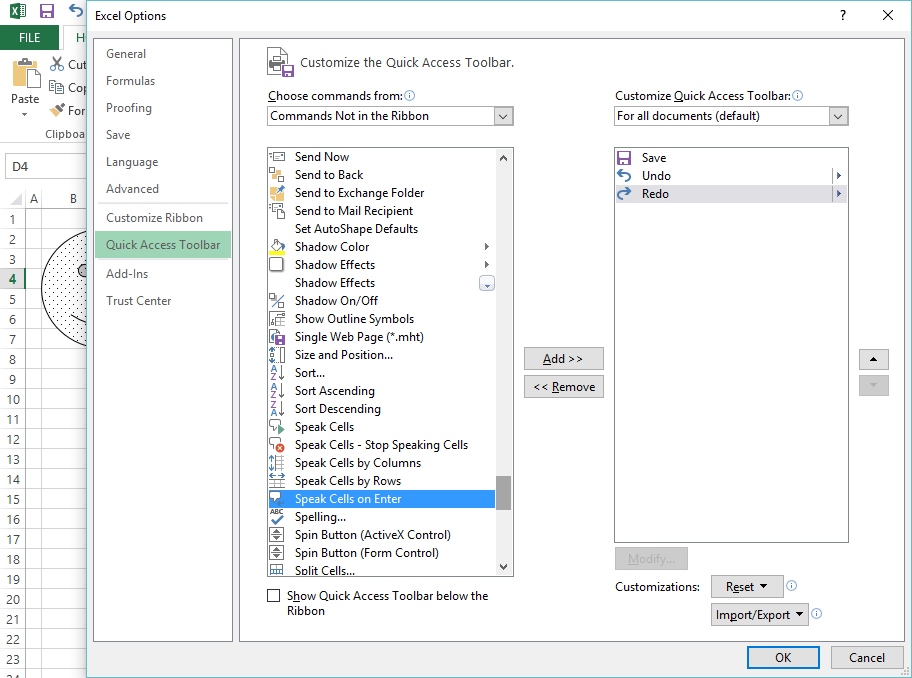
Add It:
- Navigate to the File menu
- Select Options
- Navigate to Quick Access Toolbar
- Choose Commands from:
- Commands Not in the Ribbon
- Select Speak Cells on Enter
- Add >> (or double click the option)
- Select OK
Enable It:
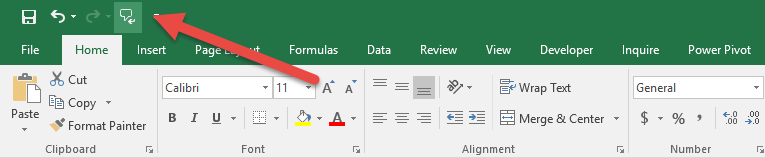
At the top of your Excel application you will find the quick access toolbar
- Press the Speak Cells On Enter command to toggle between ON | OFF
- Whenever you press enter within a cell the Excel application will read the results aloud
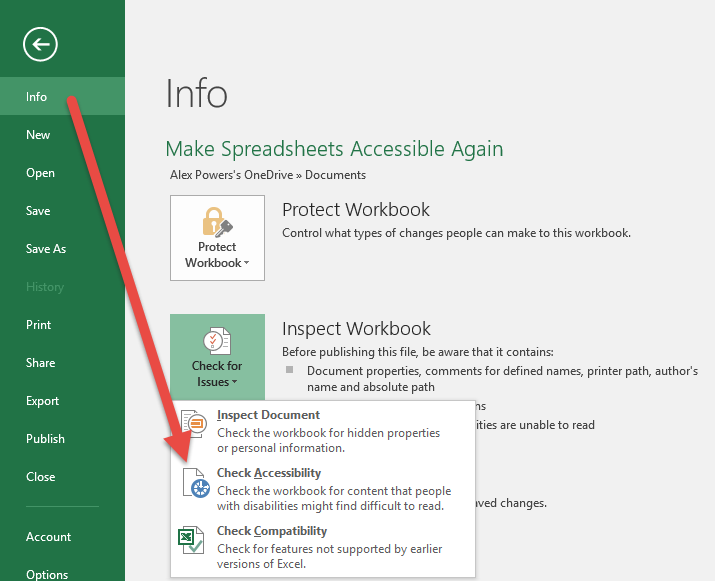
Check It:
- Navigate to the File menu
- Within the Info Section, press the Check For Issues button
- Select Check Accessibility
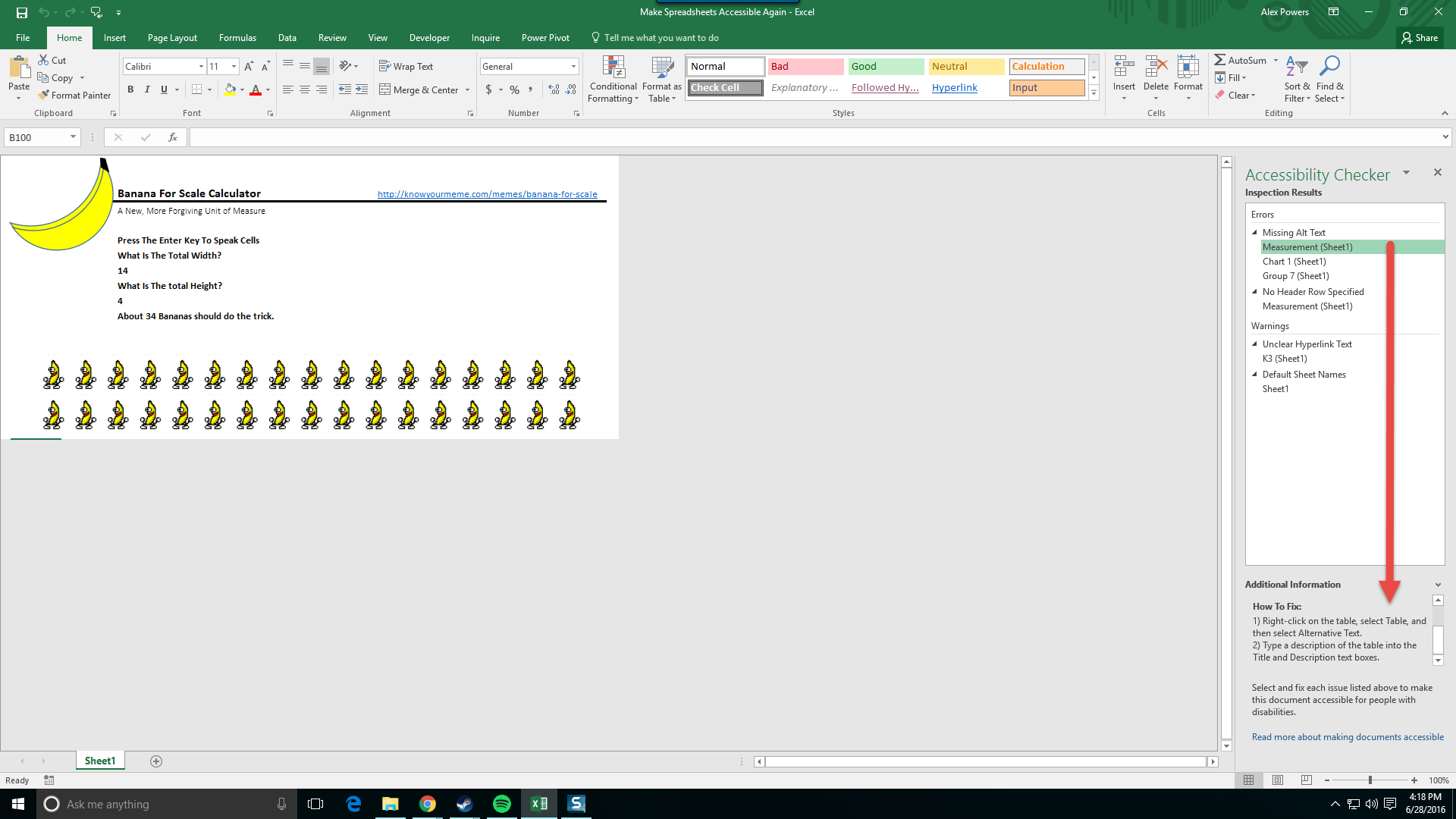
Fix It:
- Within the Inspection Results select any of the Errors or Warnings for Additional Information
- Within Additional Information perform the How To Fix: steps for each of the Errors and Warnings
- You may need to scroll down depending upon your display settings.
Get That Check Mark:

“The loss of sight does not impair the qualities of mind and heart.”
Helen Keller
Franklin Delano Roosevelt served four terms as President Of The United States of America. Claude Monet painted his famous Les Nymphéas. Stevie Wonder shaped modern music with over 25 Grammy awards. All three dealt with varying degrees of vision impairment. Perspective is not limited to your visual perception, it's in the way you experience information and the stories you are able to share. There's no excuse for your spreadsheets to be any different.